For customers
Administrators run their company's organization on inferdopt: they have apps built for the business and invite their team.
What Administrators want
Move work that takes slips of paper and spreadsheets today into an app, and decide themselves who on the team uses it.
What Administrators can do
- Have apps built and change them.
- Invite people and decide who uses which app, in which role.
- Manage the organization's connections and settings.
- See how the organization's apps are used, under “Usage”.
How it works
- 01
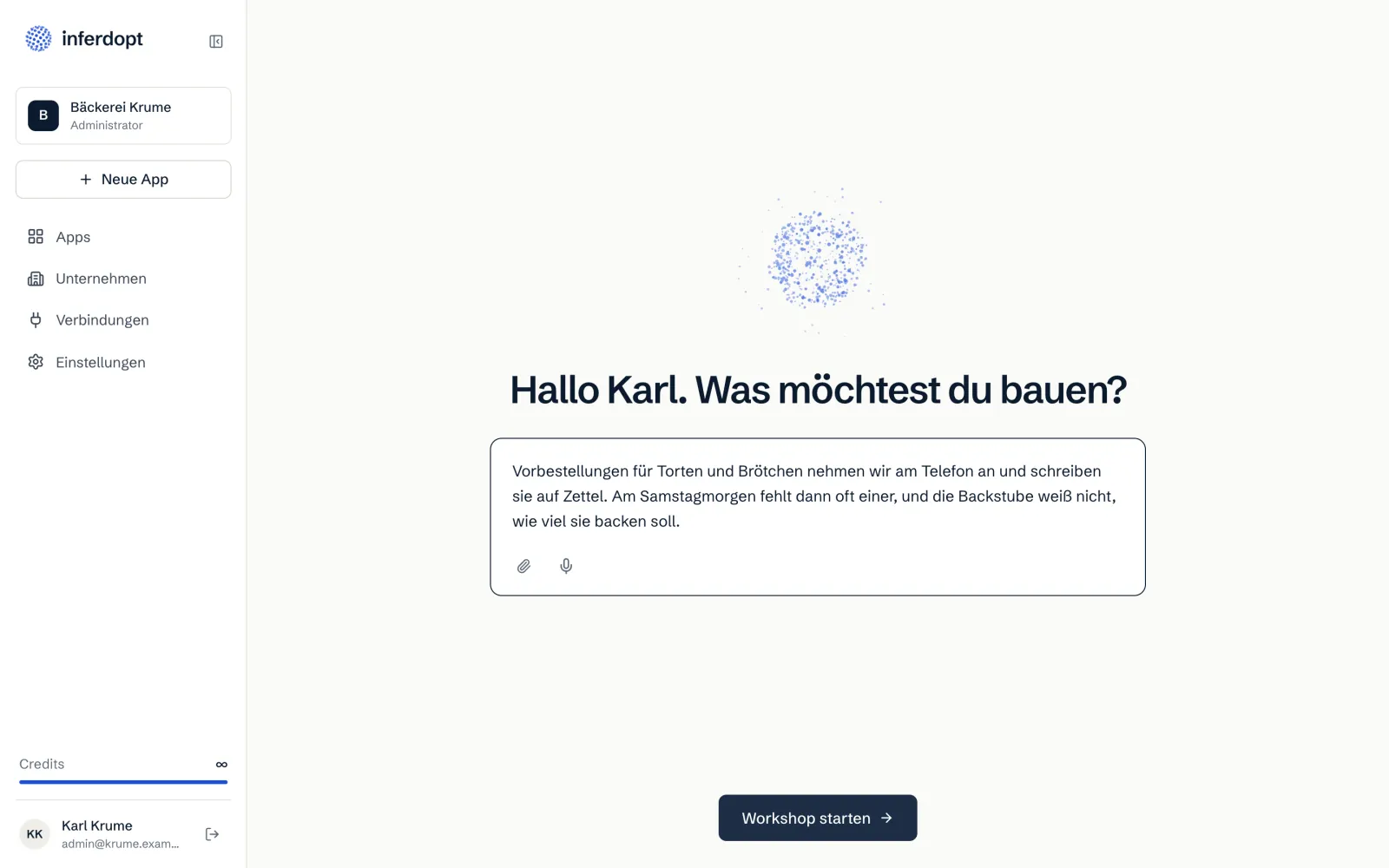
Click “New app”. To the question “What would you like to build?” you write in a sentence or two what holds you up, and click “Start the workshop”.
- 02
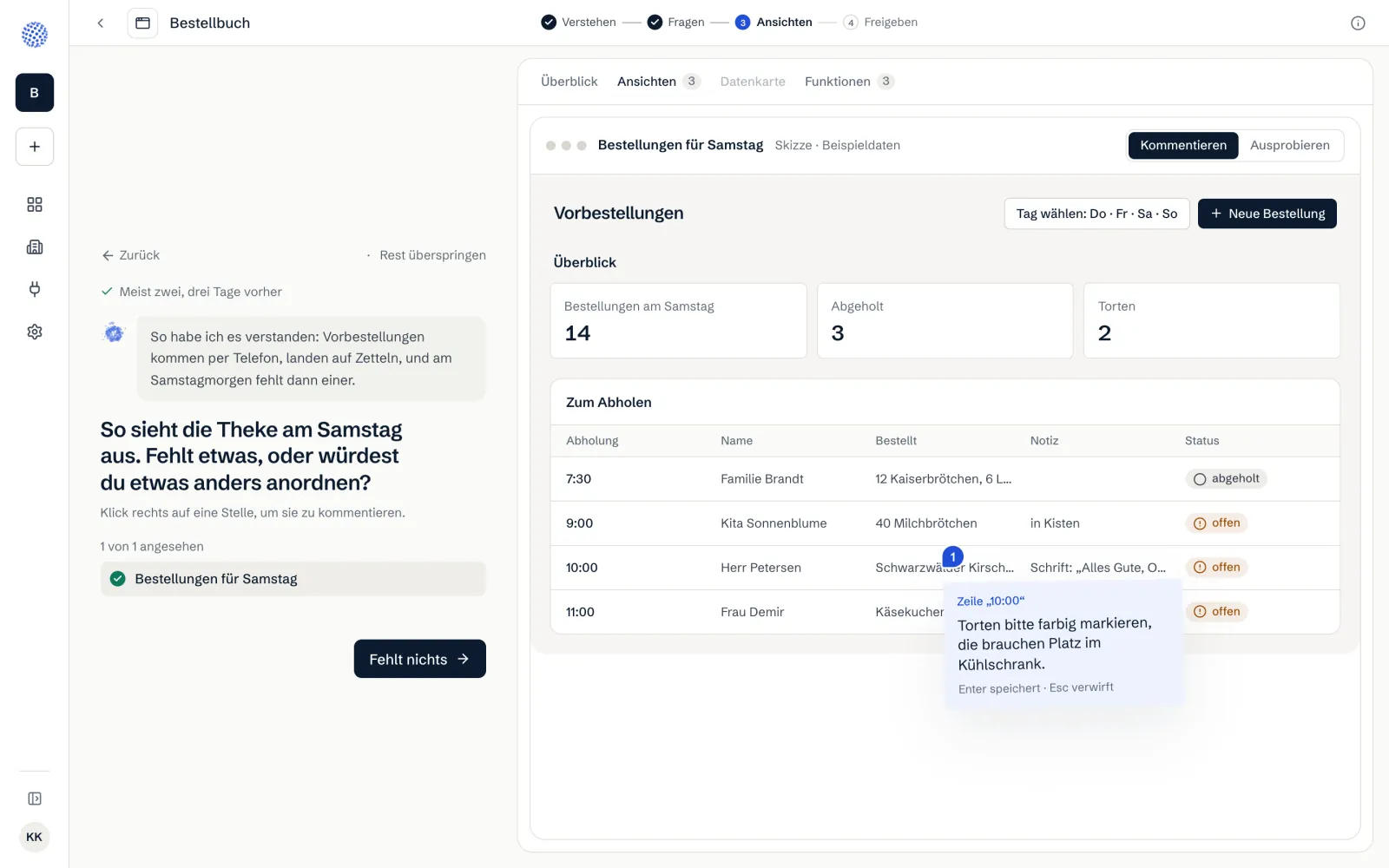
In the workshop the designer asks you questions, writes your plan and shows you a sketch with sample data that you can comment on.
- 03
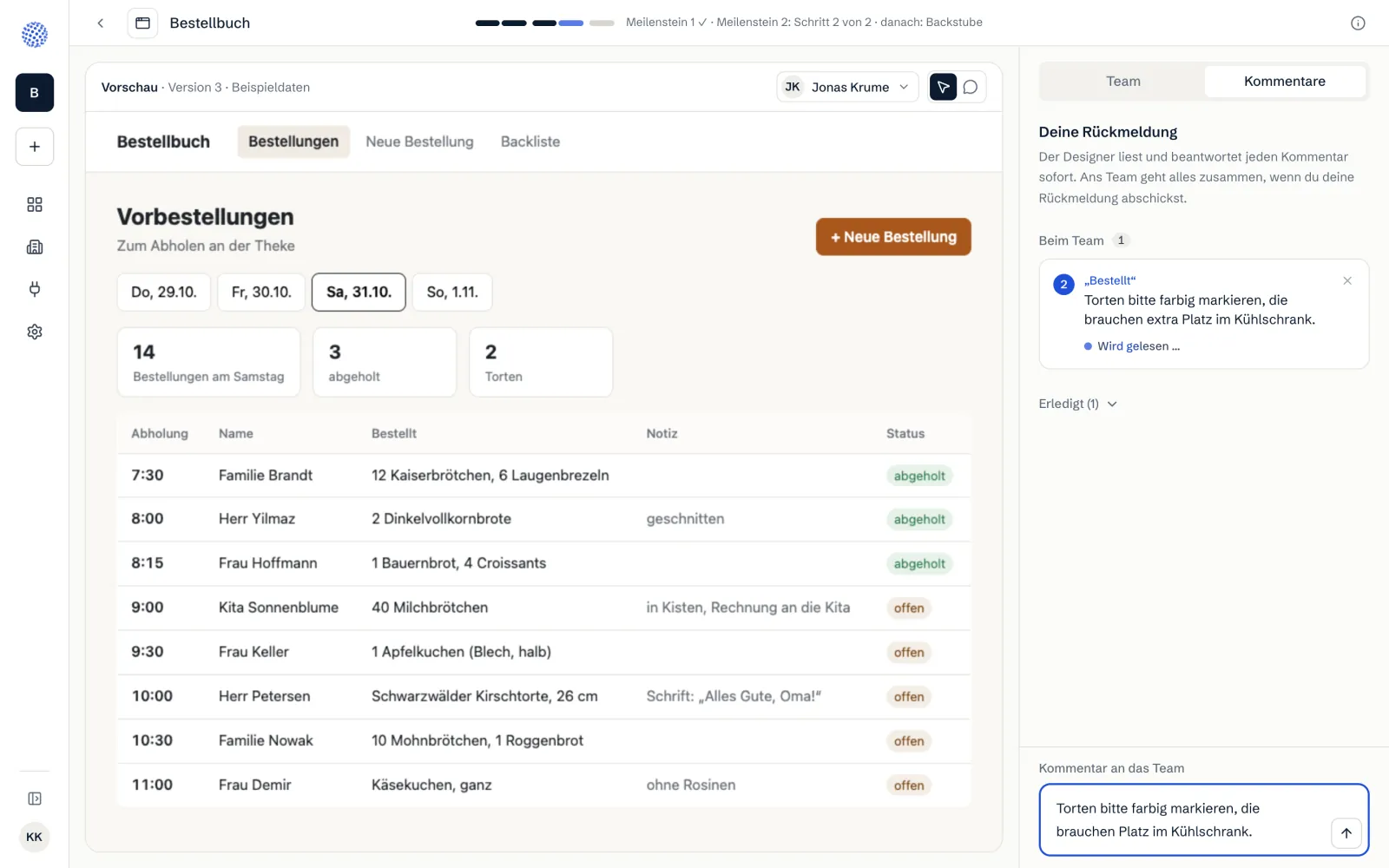
“Build the app” approves the plan: the team builds in milestones, and every new version appears in the preview.
- 04
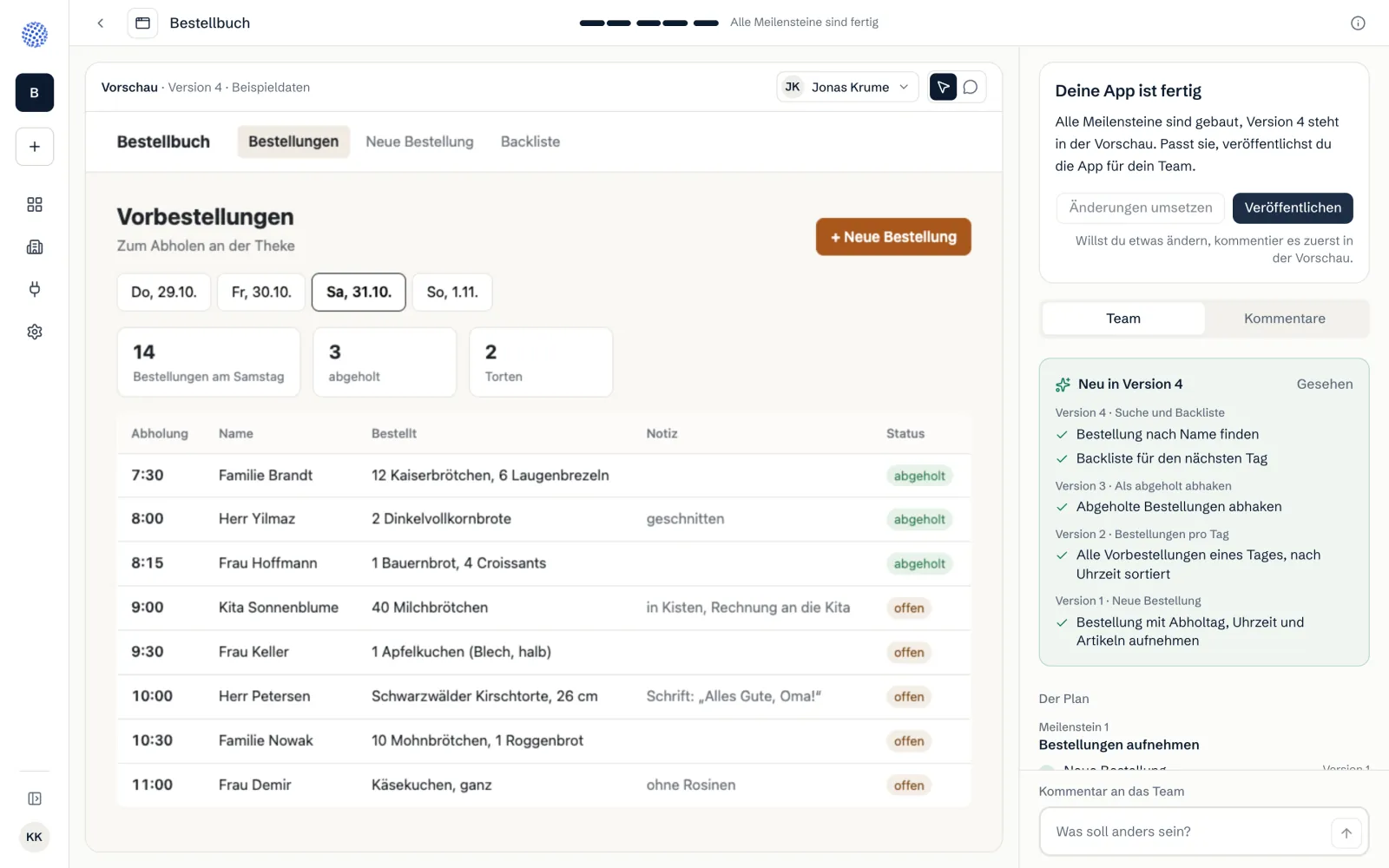
Once the app is finished, click “Publish”.
- 05
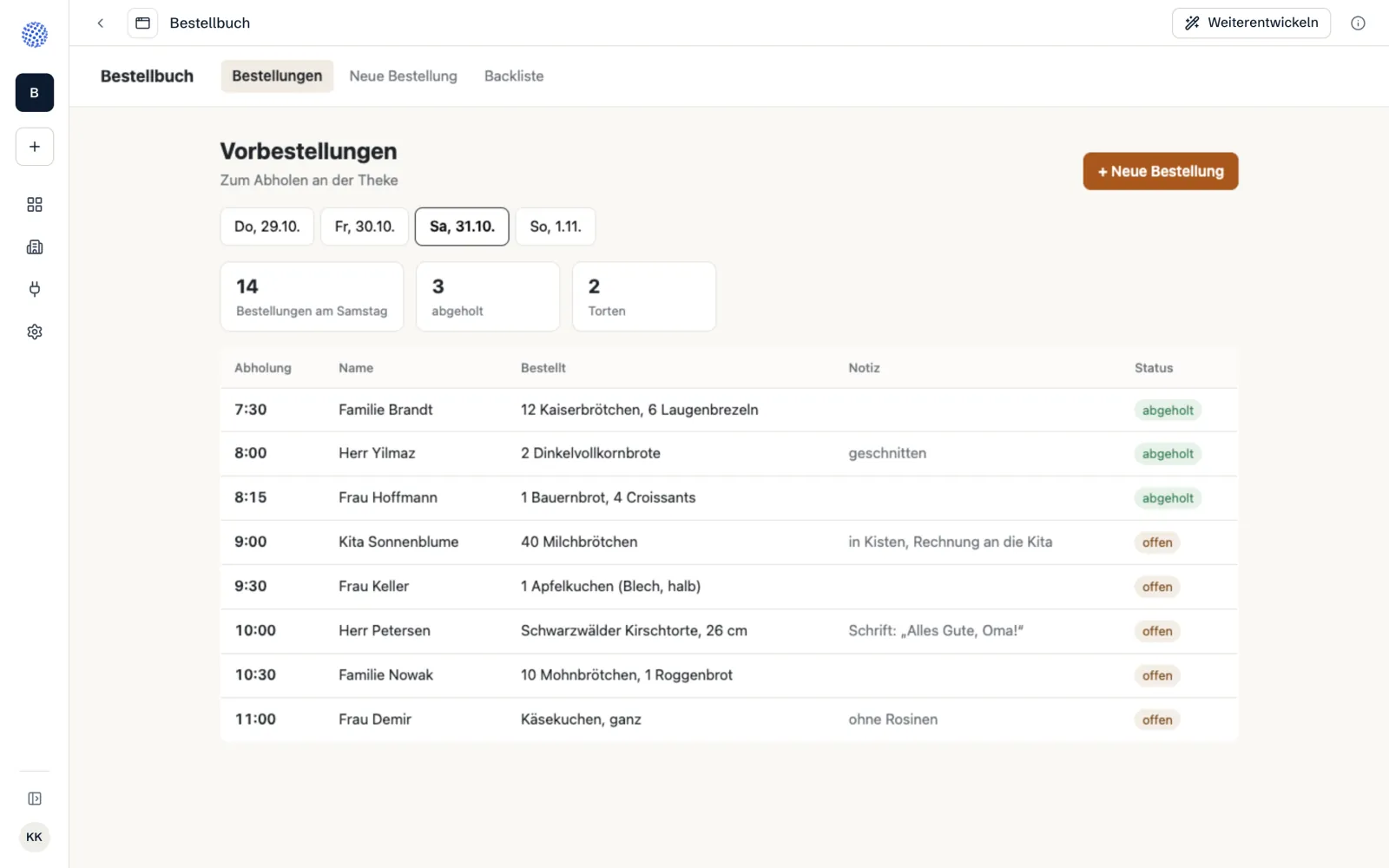
Open it under “Apps”. It runs at its own address and wakes up when you open it, if it was asleep.
- 06
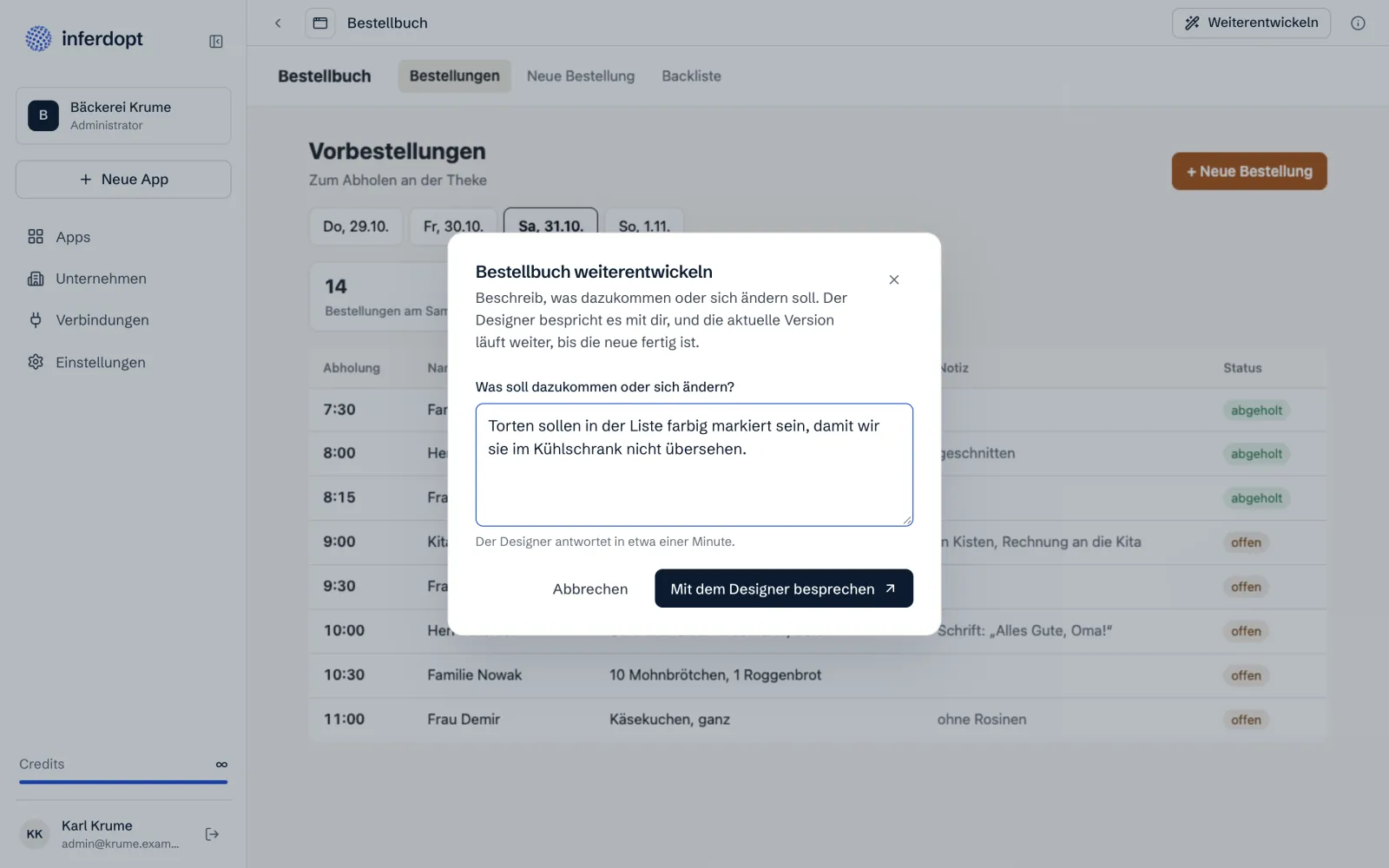
For a change, click “Request a feature” in the app and describe what should be added or changed. How many credits you have left is bottom left, above your name.
- 07
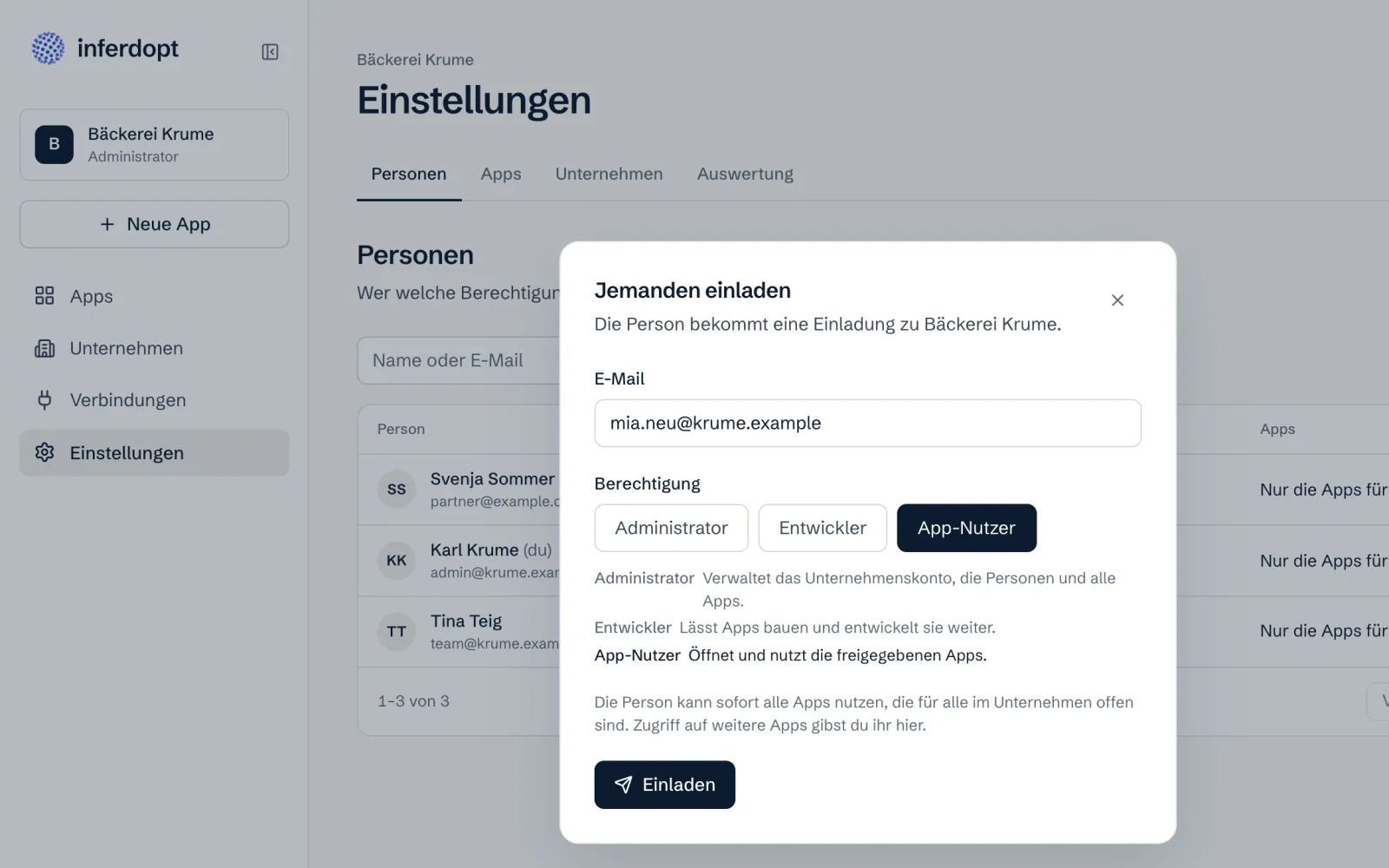
Under “Settings” → “People” you invite your team, as App users or Builders, and decide who uses which app.
- 08
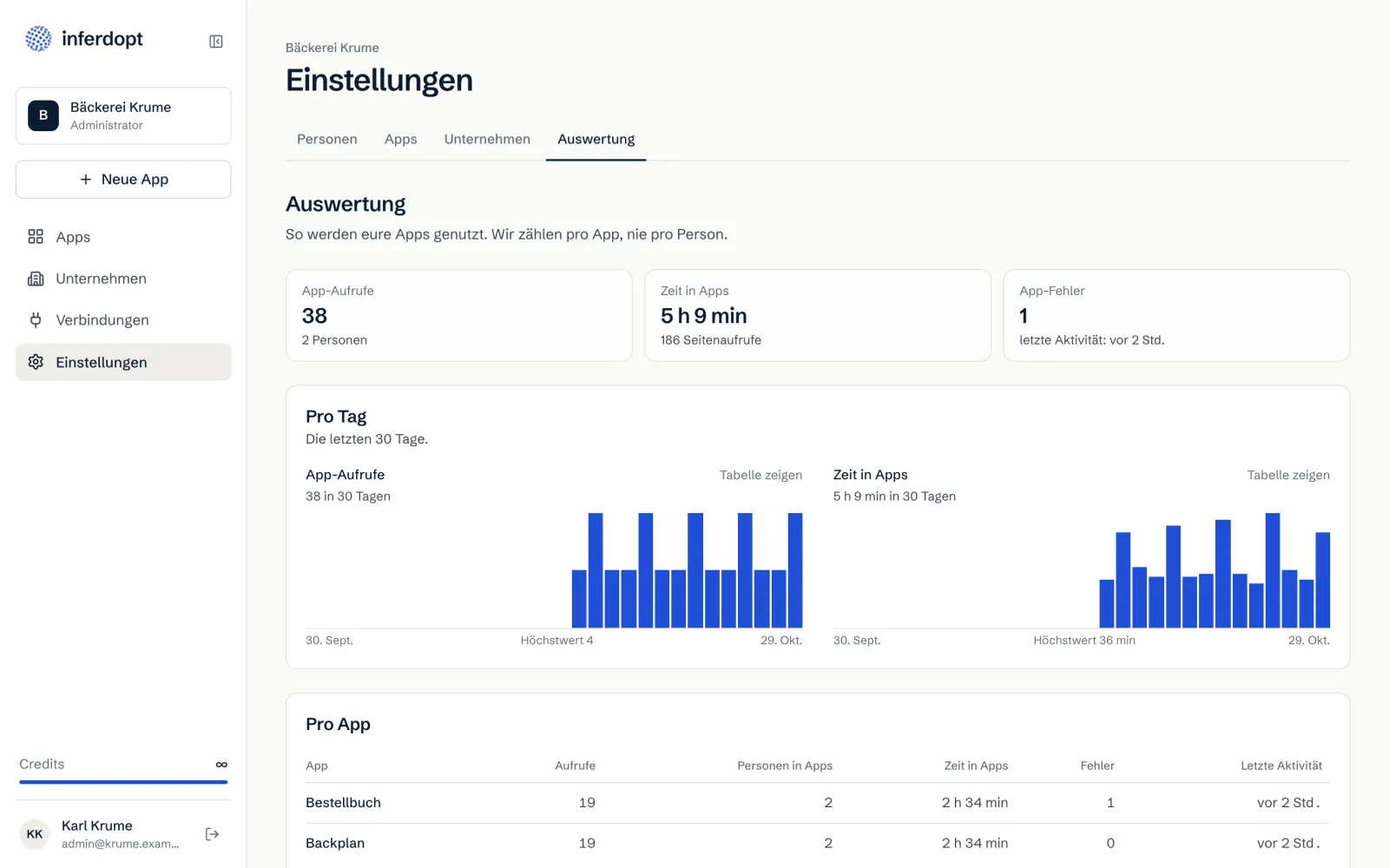
“Usage” shows how often your apps are opened, by how many people and for how long.
Good to know
- Every change costs credits. You see how many you have left bottom left, above your name, on a phone top right.
- While a change is being built, the current version keeps running until the new one is ready. Each app has only one change in progress at a time.
- If the last change doesn't fit, go back to the version before it under “History”. Whatever was saved in the app since then is set aside.
- For each app you decide whether it is open to everyone in the organization or only to selected people. The app itself defines which roles it has; each person has at most one there.
- Apps nobody has used for a while go to sleep. They wake up when opened, usually in under a minute.
Roles, credits, connections, usage and privacy are under Reference.